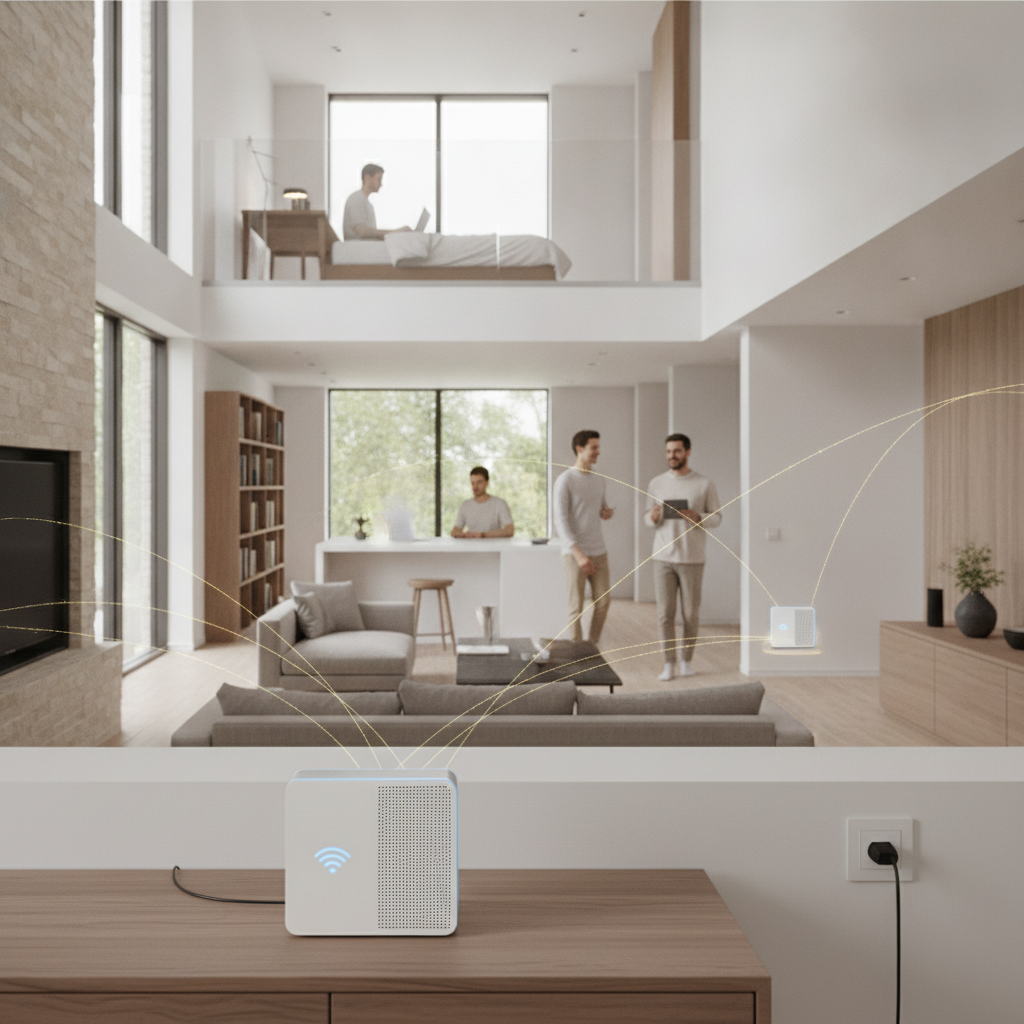
Weak Wi-Fi in the back bedroom, a spinning buffer wheel every time you sit on the patio, and a signal that drops entirely in the basement — these are the kinds of frustrations that make working from home feel like an obstacle course. Most people assume solving the problem means calling an electrician, running new cables through walls, or investing in some complicated networking setup. The good news is that mesh Wi-Fi systems handle all of this wirelessly, using a set of coordinated nodes that blanket your entire home in reliable coverage without touching a single wall.
Understand How Mesh Systems Actually Work
Unlike a traditional router that broadcasts from one fixed point, a mesh system uses multiple nodes placed around your home that communicate with each other and share a single network name. Your device automatically connects to whichever node offers the strongest signal as you move from room to room. Systems like Google Nest WiFi Pro and Eero Max 7 have refined this handoff process to the point where most users never notice a transition. The result is consistent speed and coverage whether you're streaming in the living room or hopping on a video call in the garage.
Start With a Simple Coverage Audit Before Buying
Before purchasing anything, walk through your home with your phone and check the Wi-Fi signal strength in every room, including hallways, bathrooms, and outdoor spaces. Note the spots where the signal drops or speeds slow noticeably — these are your dead zones. Most homes between 1,500 and 3,000 square feet do well with a two or three-node system. Larger homes, multi-story layouts, or properties with thick concrete walls may need an extra node. Taking ten minutes to map your space helps you buy the right size system rather than guessing and ending up with gaps.
Place Your Primary Node Close to Your Modem
The main node in a mesh system connects directly to your modem via an ethernet cable, and its placement matters more than most people realize. Positioning it centrally — rather than tucked in a corner or buried in a cabinet — gives the rest of the network a stronger foundation to build from. If your modem is in a far corner of the house, consider asking your internet provider about repositioning the coax or ethernet outlet, which is often a simpler and cheaper service call than full rewiring. A well-placed primary node sets the ceiling for your entire network's performance.
Spread Satellite Nodes Strategically, Not Randomly
Each additional node in your mesh system should be placed roughly halfway between the primary node and the next dead zone you want to cover. Avoid placing them behind large appliances, inside metal cabinets, or directly next to microwaves and cordless phones, which can interfere with the signal. Most manufacturers, including Netgear Orbi and TP-Link Deco, provide companion apps that show real-time signal strength between nodes and alert you when placement isn't optimal. Think of the nodes as relay stations — each one should have a solid connection to the previous one while pushing coverage further into your home.
Use the Companion App to Fine-Tune Your Network
Every major mesh system ships with a smartphone app that does much more than basic setup. These apps let you prioritize bandwidth for specific devices, set up a separate guest network, schedule internet access for kids' devices, and monitor which devices are using the most data. Spending fifteen minutes inside the app after installation often reveals settings that can meaningfully improve performance. Features like band steering — which automatically moves devices between 2.4 GHz and 5 GHz frequencies depending on the task — are usually enabled by default but worth confirming, especially on older systems.
Know When to Add a Node vs. Upgrade Your Plan
Sometimes a dead zone isn't a coverage problem — it's a speed problem. If your internet plan only delivers modest speeds to begin with, adding more mesh nodes won't dramatically improve streaming or download performance in those areas. Before adding hardware, run a speed test close to your modem to see what you're actually getting from your provider. If you're getting the speeds you're paying for but coverage is still uneven, another node is the right fix. If speeds are lower than expected even near the modem, the issue may be your internet plan or the modem itself.
Consider a Wired Backhaul for Maximum Performance
Most mesh systems work entirely wirelessly, but many also support a wired backhaul option, where the nodes connect to each other via ethernet cables run through existing outlets or along baseboards. This setup dramatically reduces the overhead that wireless communication between nodes creates, freeing up more bandwidth for your actual devices. You don't need to rewire your walls to do this — a flat ethernet cable taped neatly along a baseboard or run through a doorway is often enough. Eero and Netgear Orbi both support this hybrid setup, and the performance gains in larger homes can be substantial.
Keep Firmware Updated for Security and Speed
Mesh systems receive regular firmware updates that patch security vulnerabilities, improve device compatibility, and often squeeze out better performance from the existing hardware. Most systems update automatically overnight, but it's worth opening the app occasionally to confirm updates aren't pending or stuck. Skipping updates for long periods leaves your network exposed to known vulnerabilities and can cause compatibility issues with newer devices. A quick monthly check takes less than a minute and keeps your system running the way it was designed to.
Dealing with Wi-Fi dead zones is a solvable problem, and you don't need to tear open walls or hire a network specialist to fix it. A well-placed mesh system handles the hard work automatically, and the setup process for most leading systems takes under thirty minutes. Start by mapping your coverage gaps, pick a system sized for your home, and use the companion app to dial in the details — you'll likely be surprised how much of your home opens up once the signal actually reaches it.